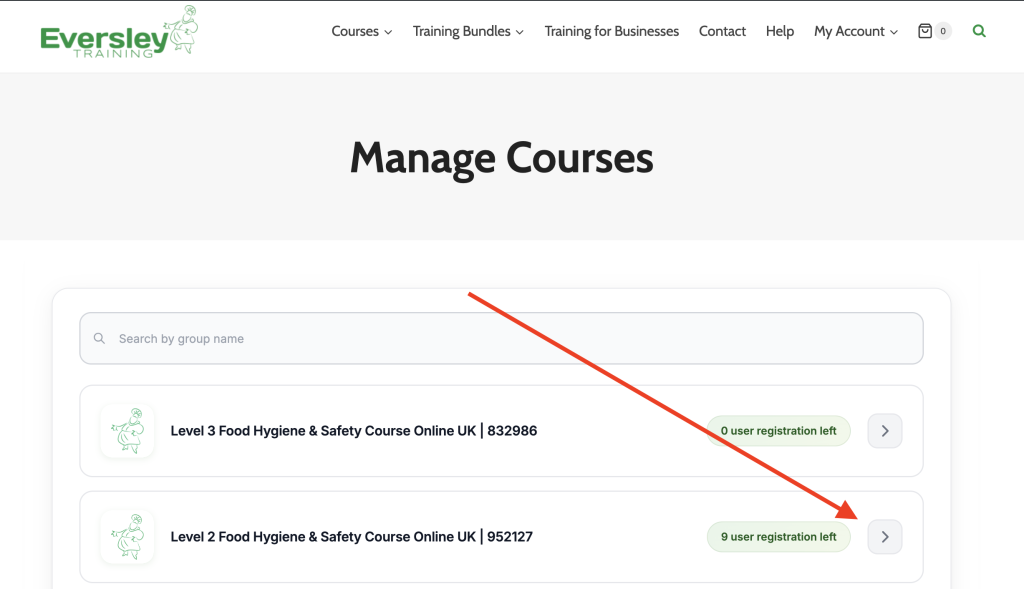
After purchasing a course on Eversley Training, assigning a course to yourself or anyone else is easy.
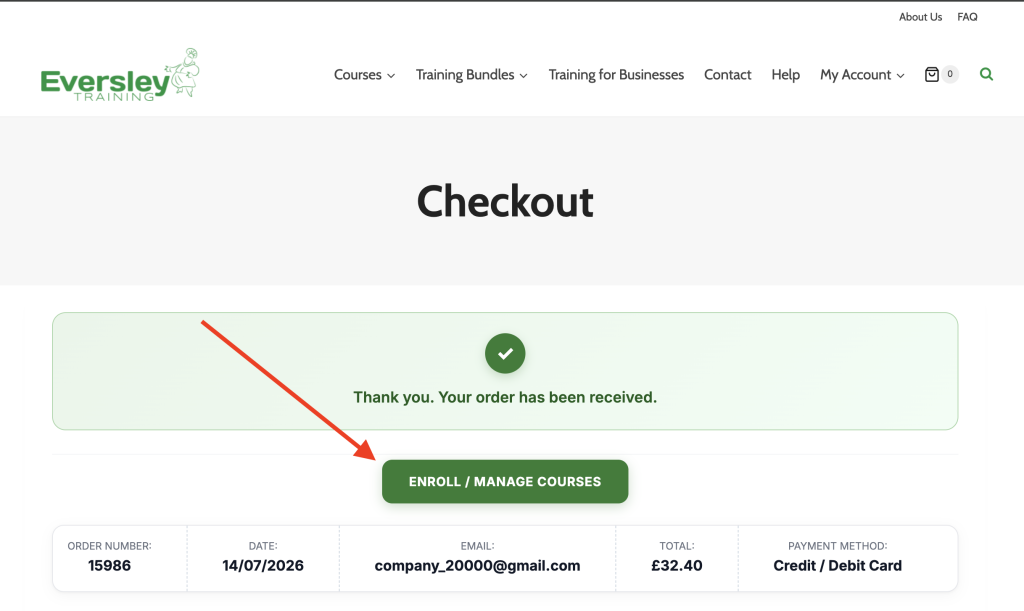
On the order confirmation page, simply click the Enrol / Manage Courses button.
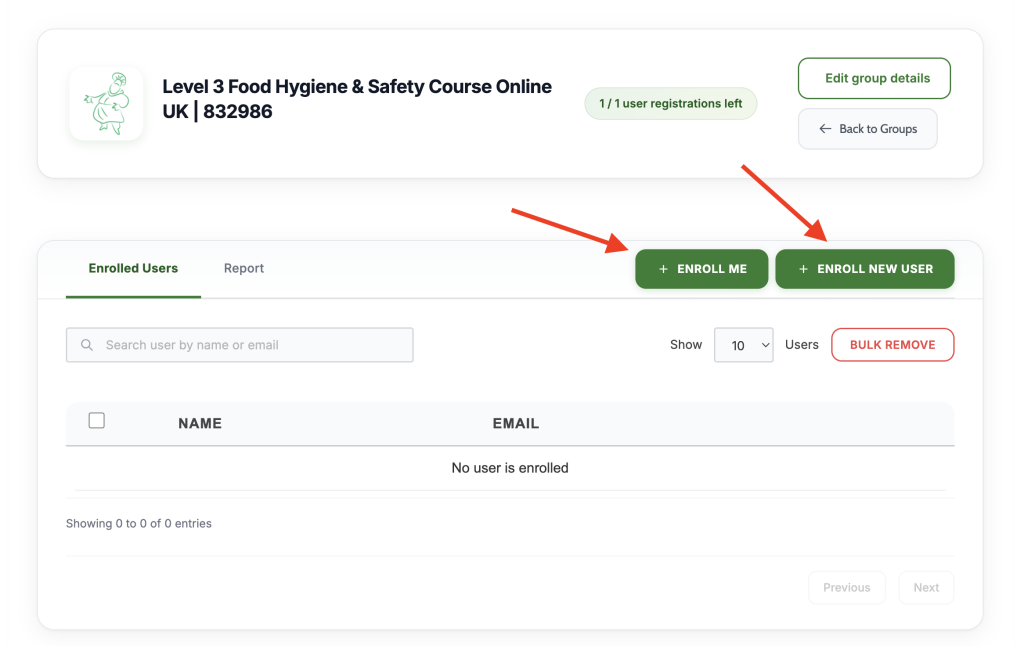
This button will take you to the course enrolment page, where you can choose either Enrol Me or Enrol New User. If the course is for you, simply click Enrol Me. If you’re enrolling someone else, such as a colleague or member of staff, select Enrol New User and enter their details. They’ll automatically receive an email containing their username, password, and a link to log in and start their course.
If you selected Enrol New User, this window will appear for you to enter the learner’s details. Please take a moment to double-check that their email address is entered correctly, as this is where their login details and course information will be sent. If the wrong email address is entered, you’ll need to contact us to have the learner removed before they can be enrolled again. Please note that this may take longer outside of our normal office hours.
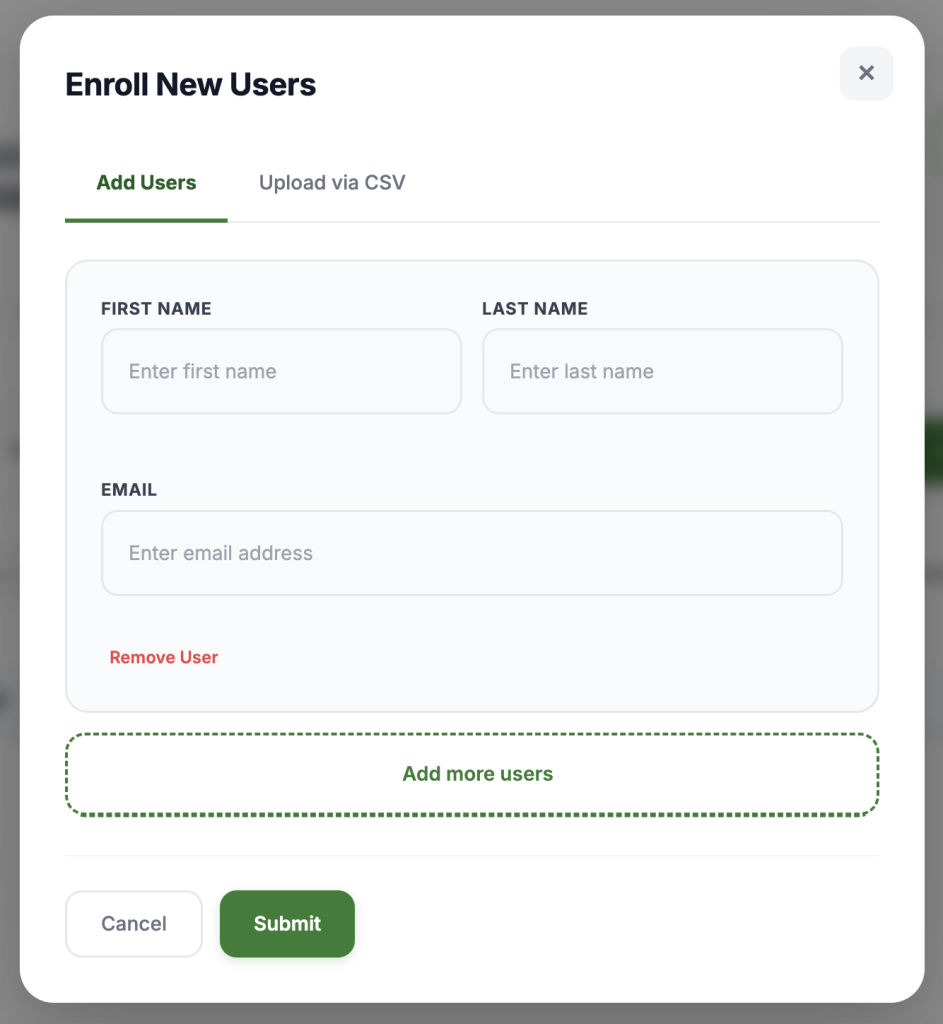
Once you’ve entered the new user’s details, click Submit. The learner will automatically receive an email containing their username (their email address), a temporary password, and a link to log in and start their course.
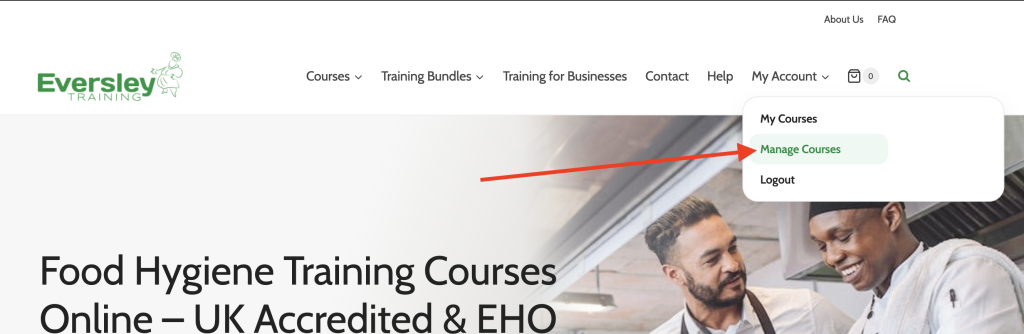
If you missed the Enrol / Manage Courses button, don’t worry. You can access it at any time by going to the My Account menu and selecting Manage Courses from the drop-down menu. This works the same way on both desktop and mobile devices.
Inside the Manage Courses section, you can clearly see all the courses in your account and how many user registrations you have remaining. All you need to do to enrol a new user on any course is click the course you want to enrol someone on and then follow the same steps as above.